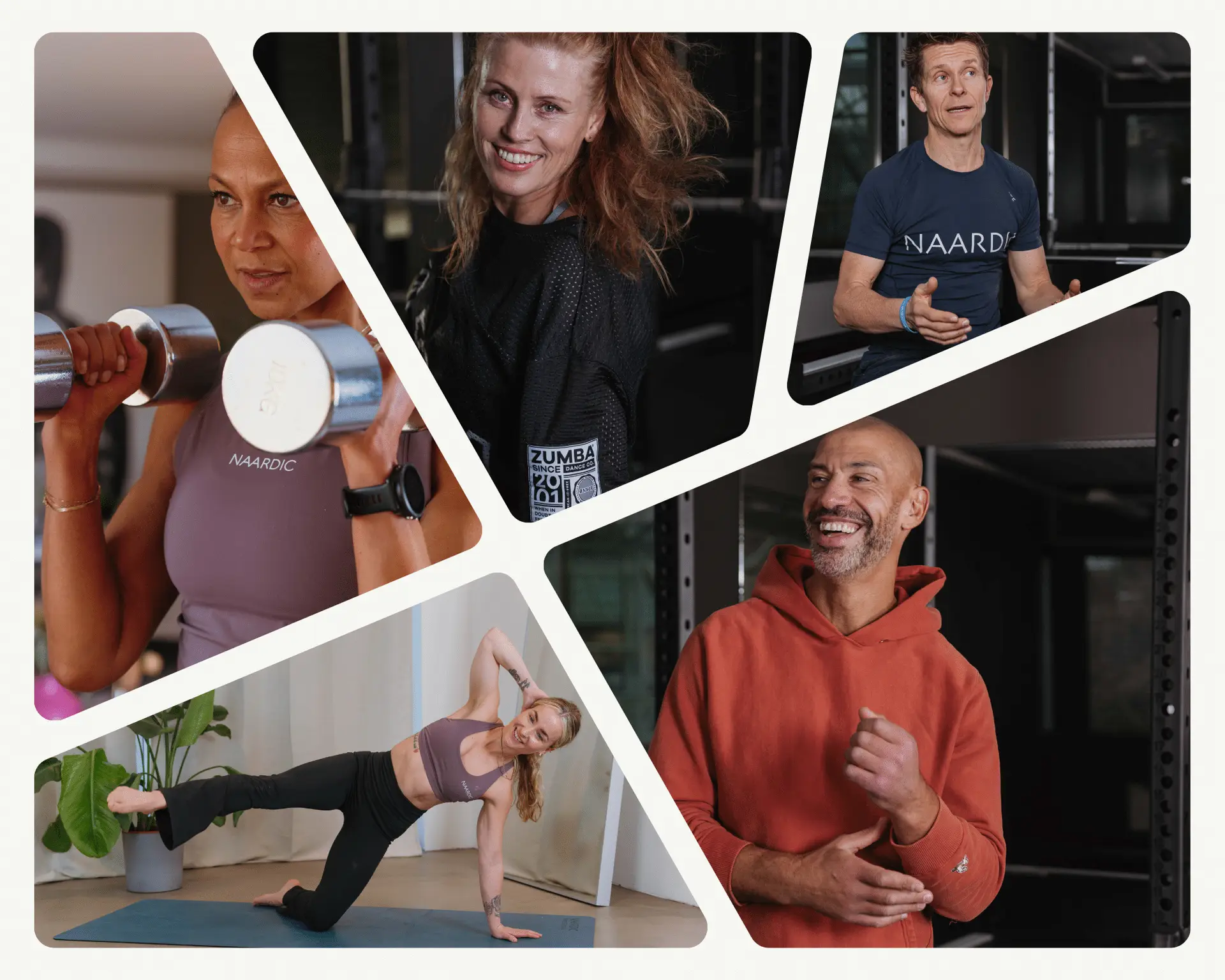
Not much! You need a screen to watch the classes from, for example your mobile or laptop/PC. Ideally, you have your camera on so that the trainer can give you feedback during the class. Most of our classes do not require any equipment, but we recommend having a training mat available.
No problem! In our schedule you will find many low-intensity workouts for beginners. Use the filter to find suitable classes. That being said, you are welcome to join all classes and make the necessary adjustments. If you want a little extra follow-up, you can check out our Premium membership or book a private session with one of our fantastic personal trainers.
No, it’s 30 days completely free of charge. If you do not wish to continue after the trial period, remember to unsubscribe before your chosen membership starts. Then standard cancellation terms apply.
Absolutely! Start with our 30-day free trial and join as many workouts as you want during this period, completely free of charge. You are guaranteed to get hooked and continue with a paid membership
It depends on which membership you choose.
1) Monthly membership has no commitment, but remember that there is one month’s paid cancellation period
2) 12-month membership has a 12-month commitment. After 12 months have passed, the membership will continue with monthly payments and runs until you cancel it yourself. Remember that there is one month’s paid cancellation period.
3) Annual membership has no commitment, but you pay for the whole year at once and will not be refunded if you cancel during this year. The membership is automatically renewed for a new year unless you change it.
Note that all our memberships are ongoing and are automatically renewed unless you cancel.
Interactive training means that the classes are live and that we see you. You of course also see the trainer, but he/she can also see you and so can some of the other participants. Thus, we become a group that trains together and motivates each other. This means that once you have started, it is difficult to quit – you feel a little of the group pressure, in a positive way.
If you don’t want the trainer or any of the others to see you, that’s also perfectly fine. In most classes, there are some who do not have the camera on for various reasons and everything is of course ok for us – we just want you to train, be comfortable and be satisfied.
Yes! Most of our sessions are recorded, which means that you can see them for up to four weeks after they have gone live. You do not need to book classes you want to see in recording. Scroll back in the schedule and press “video” and you will start the session.
That being said, we primarily focus on live sessions as our experience is that you are more likely to complete the session if it is live as opposed to recorded. We have a large schedule with many classes every day and hope you will always find a class that suits you that day and approximately at the time you want to train.
Please visit our video library for recorded sessions you can complete at your convenience.
For most classes, it is recommended that you have a training/yoga mat available. These are relatively thin mats made of rubber (6mm thick) that will provide the best combination of cushioning and stability, while not sliding around. Some of our sessions also use other equipment such as weights or resistance bands. Find out if the class you are going to participate in recommends equipment under “info” in the schedule.
To activate your calendar invitation, do the following:
1. Log in to your user
2. Click on your profile picture in the right corner
3. Click on notification settings
4. Select ¨Send calendar invitation for booked workout¨ and enter the desired e-mail.
5. Press ¨Update¨
You have two options:
1. Via link you receive by email (remember to accept email notifications in your profile if you did not do this when registering)
2. Via your profile and your booked classes. 15 minutes before the class starts, it will say “open now”. Press there and you will be taken to the training room. If the green button has not appeared, you must reload the page.
As a member of Naardic, you can invite friends to train with you. You will see each other and can talk to each other during the session itself. No other participants can see you and neither the trainer nor other participants can hear what you say (it happens automatically). Training together with others is both social and motivating 🙂
Before the training itself starts, everyone in the same private training group will meet in the “changing room” where only you can see and hear each other. Between 1-3 minutes before the session starts, you will automatically be taken to the training room where you will be visible to the trainer. You can choose to enter earlier by pressing “Meet trainer”.
Inviting friends to training means that you have a fixed appointment and it is one of the best ways to ensure that you show up and get results!
See how the friend function works here!
Did you know that you can get an SMS notification 15 minutes before your class starts? To activate your SMS notification, do the following:
1. Log in to your user
2. Click on your profile picture in the right corner
3. Click on notification settings
4. Select ¨Receive SMS reminders before the class¨
5. Press ¨Update¨
Have you checked your spam?
If the email is not in the spam folder, it may be that you have chosen not to receive reminders by email when you registered. You can change this in your profile by going to “Notification settings”.
You can also get to the “training room” via your profile on naardic.no. Under “My classes”, a green button will appear 15 minutes before the start, saying “Enter”. Press here and you will be taken to the training room. If the green button does not appear, you must reload the page.
YES! We offer corporate memberships to small and large companies. Activity is incredibly important for a good and efficient workplace and helps to strengthen results, therefore we are very happy to be able to help make it even easier. Send an email to post@naardic.no for a non-binding offer, or fill out the form here.
You can choose completely yourself who can see you and who you want to see. In all classes, approximately 20% have the camera off and that is of course fine. However, we recommend everyone to have the camera on so that the trainer can give you feedback along the way. Remember that everyone is more concerned with the trainer and themselves when training so they pay little attention to what others are doing, but it still gives a feeling of community to see and train with others.
Who sees me (choose between):
1) No one, if you have the camera off
2) Only trainer
3) Only friends
4) Everyone can see me
Who do you see:
1) You will always be able to see the trainer
2) If you have the camera on, you will also see yourself
3) You can choose whether you only want to see the trainer and yourself or others (up to four other participants can be visible on your screen
We recommend PC or Mac. And it is best if you connect it to the TV. The larger the picture you have, the easier it is to see what the trainer is doing, and what the others are doing. A larger picture clearly makes a difference. It is easy to connect the PC to the TV with an HDMI cable. Just pull out the cable from the decoder or AppleTV and connect it to the PC. If the picture does not appear directly on the screen, press the remote control to the TV called “Source». After 1, 2, 3 or 4 presses, the picture from the PC will appear on the TV. On mobile, it will also often work well, but there are so many different mobiles, browsers and operating systems that it is difficult to get to everyone before we create our own mobile app.
Should you need help with connection, you are welcome to contact us on chat!
When you log in, the trainer welcomes you and is happy to answer questions. The trainer will always be in the “training room” at least 10 minutes before the training begins. When the class starts, the trainer will double-check that no one has sound on – only the trainer will have sound on.
Chrome will mainly work best on PC/Mac, android phones and tablets.
If you want to change your membership, cancel or extend your membership, log in and go to “Membership & payment” which is located in your profile menu (at the top right corner, by your profile picture). For some changes to membership, you must contact customer service.
Yes, we think it’s great if you bring some friends to training. Then they also get to test Naardic together with you. Please let us know what they are called before we start so that the trainer can give feedback to everyone along the way.
Before you start training at Naardic, you must assess your own health. Feel free to talk to your doctor before you start. Training with Naardic is anyway much safer than training alone. If something should happen, the trainer will be able to contact relatives or health personnel. Remember that the trainer sees you during the entire session as long as you choose to have the camera on. Safety is one of the things we focus most on.
This is easy!
1. Plug Chromecast into the back of the TV via HDMI outlet.
Byusing Chrome as a browser, you will see 3 dots at the top right of the browservertically.See picturesfor how to proceed withcastingfrom PC/Mac or tablet to TV.
No, the sessions are carried out on our own video conferencing system. Here the class will open in a browser and you do not need to download any program.
It happens that our system registers errors in attendance and you receive an email saying that you have not participated.
This is of course VERY annoying when you have actually participated in the training, but fear not, there is a solution!
If you are logged in on the website, you can scroll down to below the schedule where you will find “My statistics” and click on “History”. Find the class we registered you did not participate in. It will say DNS and a red circle to the right of this class. If you click on the red circle, you can register yourself that you were in the class.
Yes, it is because the internal clock on your PC is not quite correct. If you synchronize it, the timer will be correct. Macs are usually automatically synchronized so this problem is greater on PCs. To update/synchronize the clock on your PC, go to Settings>Time and language>Date and time> Press “Synchronize now”. Now the timer will be correct.
This is out of respect for the trainers and the other participants as this can take focus away from the classes, especially for the trainer. It is neither good for you as a participant nor the trainer who has put together a program, and it will be detrimental to the quality.
Therefore, it is important to be ready in good time! “Synchronize now”. Now the timer will be correct.
No, unfortunately this is usually not possible. It is wise to enter the training room a little in advance of the class so that you are sure that you will participate. It is possible to enter the training room from 15 minutes before the class starts.
Not yet. For the time being, everyone who lives at the same registered address can use the same membership. For example, a father with a 16-year-old son does not need to buy their own membership, they can train with the same membership. For the time being, there is only one user associated with each membership.


